

What is this strategy?
This strategy focuses on effectively selecting and adjusting variability in Playlab apps. By understanding how variability affects model outputs and matching the appropriate setting to your specific use case, you can optimize your app’s performance for consistency, creativity, or a balanced approach.Why It’s Important
Variability in Large Language Models (LLMs) is one of the levers Playlab creators can leverage to try and fine tune their outputs. It determines how consistently models perform across different tasks or when processing different types of information:- High variability can lead to more creative, diverse outputs
- Low variability ensures more consistent, predictable responses
- Medium variability provides a balanced approach for general-purpose applications
- Selecting the appropriate variability level ensures your app meets user expectations
AI is not magic, it’s math. So variability does not guarantee a certain output even if it’s set at a very low variability. It just means it’s more likely to be consistent
How to Adjust Variability
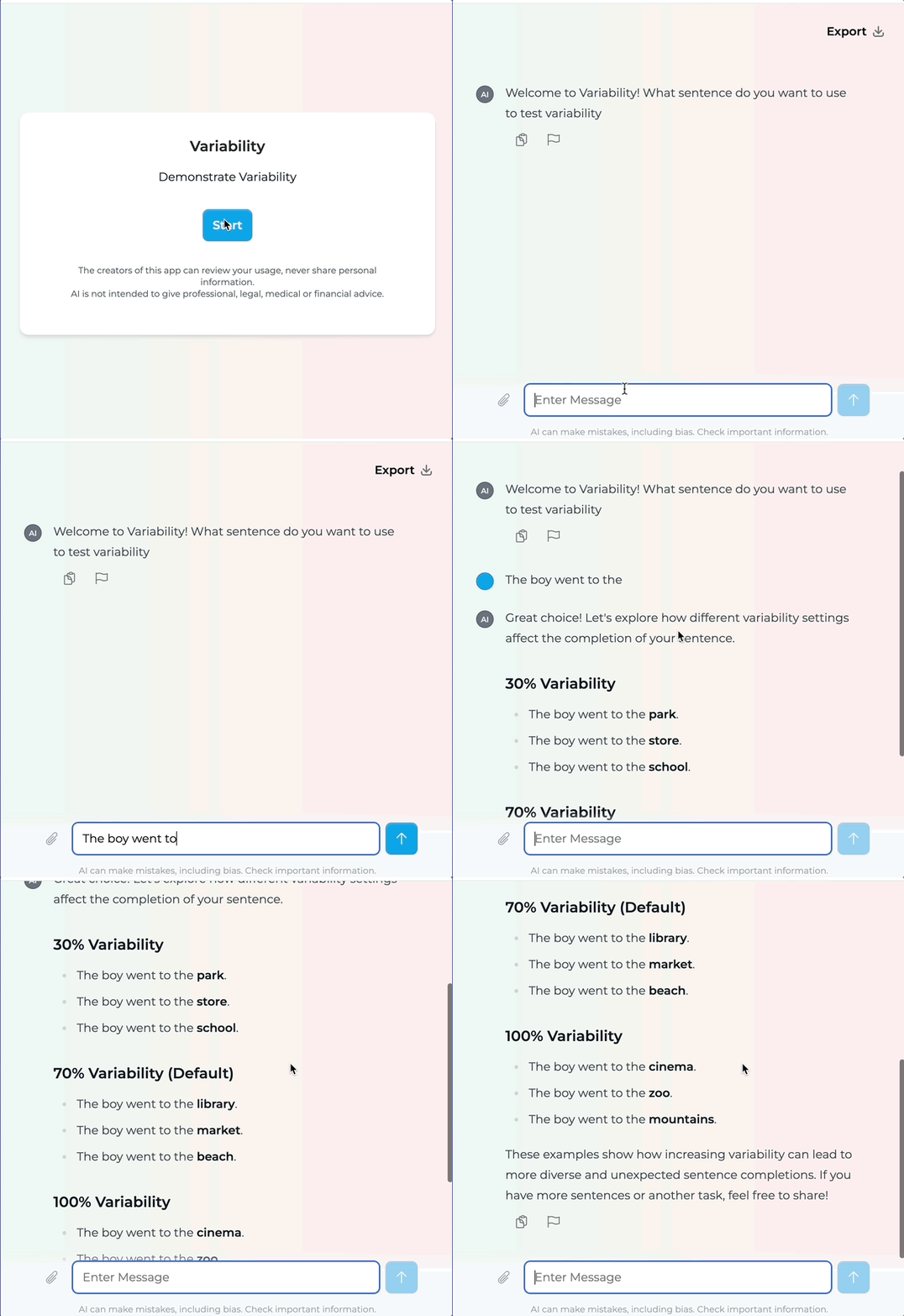
1
Understand Variability Levels
Variability Levels and Their Impact:
- Low Variability (less than 50%): Most consistent, reliable outputs
- Medium Variability (60-70%): Balanced performance (70% is the default)
- High Variability (80-100%): Most creative, potentially unpredictable outputs
2
Consider Your App's Purpose
Match Variability to Your App Goals:Ask yourself these questions:
- Does your app need to provide consistent, predictable responses?
- Is creativity and diversity in responses important?
- How important is reliability versus potential novelty?
- What are your users’ expectations for the app’s behavior?
3
Select Variability in Playlab
While in the Playlab app builder: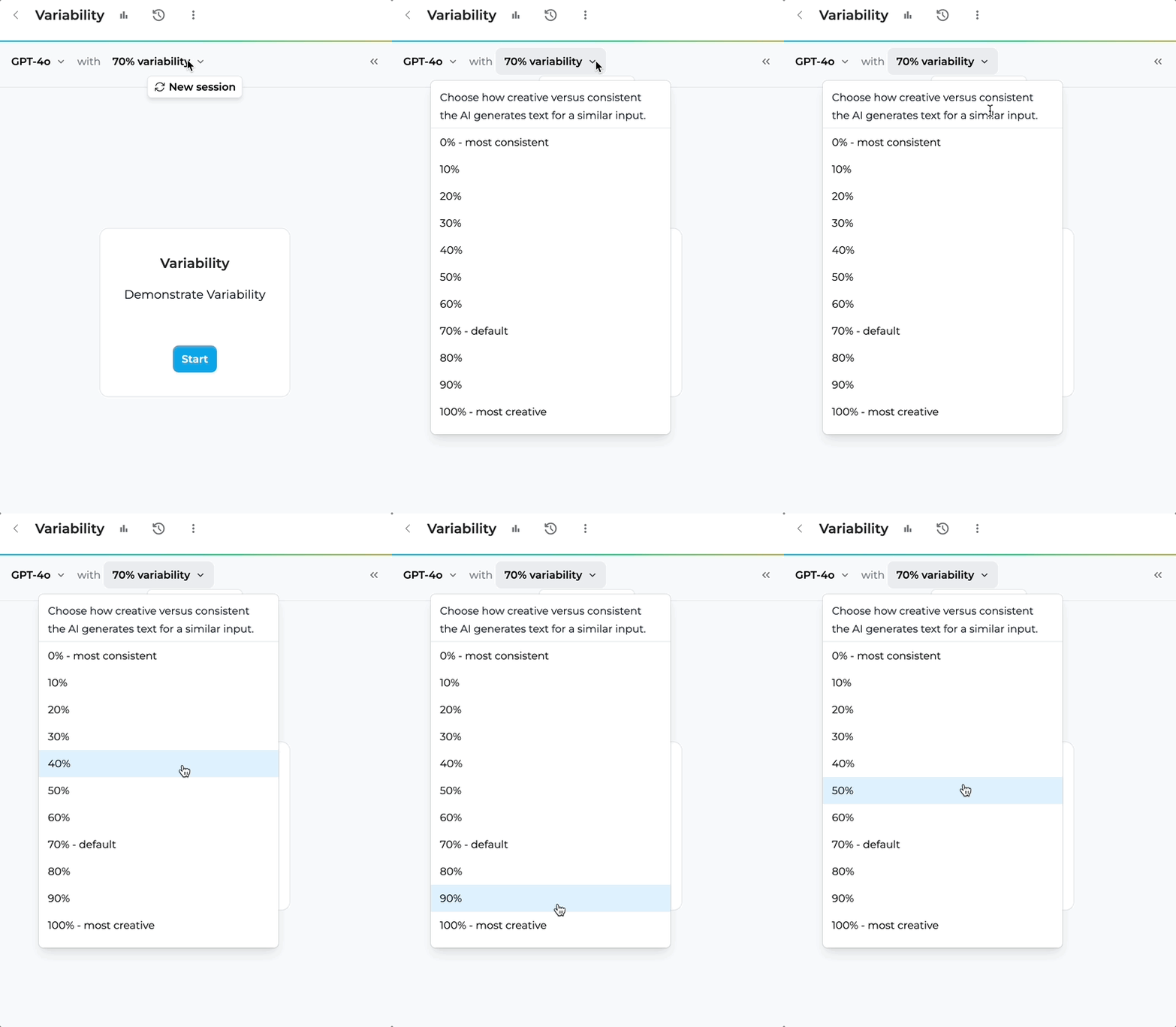
- Locate the variability dropdown at the top of the builder interface
- Select the variability that you want to use.
- Test your app with different settings
4
Test and Refine
- Use the “Remix” feature to create different versions with varying settings
- Test each version with similar inputs
- Compare outputs for consistency, creativity, and appropriateness
- Gather user feedback on which version best meets their needs
- Refine your selection based on real-world performance
Variability Comparison Guide
Understanding the Impact of Different Variability Settings
Key Implementation Dimensions
Match to Task Specificity
Match to Task Specificity
- High-variability models excel at accuracy on specific, familiar data
- They may struggle with new or unfamiliar data types
- Consider your app’s domain and how specialized the knowledge needs to be
- For highly specialized domains with consistent inputs, higher variability may work well
Choose Balance for Flexibility
Choose Balance for Flexibility
- Medium variability offers steady, adaptable performance
- Provides a good balance for apps that need to handle diverse tasks
- Avoids extreme performance swings while maintaining acceptable creativity
- Default setting (70%) works well for most general applications
Prioritize Stability for Consistency
Prioritize Stability for Consistency
- Low-variability models give reliable results across varied tasks
- Ideal for applications where consistency is more important than creativity
- Better at handling changes and new situations in a predictable way
- Recommended for business, customer service, or factual information apps
Consider Predictability Requirements
Consider Predictability Requirements
- Less variability means more predictable performance
- For mission-critical applications, choose medium to low variability
- When consistent user experience is essential, lower variability is preferred
- Applications requiring regulatory compliance benefit from lower variability
Variability Selection Big Questions
When deciding on variability for your Playlab app, consider:- App Purpose: What is the primary function of your app?
- User Expectations: What level of consistency do users expect?
- Content Type: Is the content factual, creative, or a mix?
- Risk Tolerance: How important is it to avoid unexpected outputs?
Frequently Asked Questions
Can I change variability after creating my app?
Can I change variability after creating my app?
Yes! You can adjust the variability as you’d like or use the “Remix” feature in Playlab to create a new version of your app with different variability settings. This allows you to test multiple versions and compare their performance.
Does variability affect response speed?
Does variability affect response speed?
Variability settings primarily affect the consistency and creativity of outputs, not the processing speed. Response times are more influenced by model size and complexity rather than variability settings.
What's the best variability setting for a knowledge base assistant?
What's the best variability setting for a knowledge base assistant?
For knowledge base applications where factual accuracy and consistency are important, a lower variability setting (30 to 50%) is generally recommended. This ensures more reliable and predictable information retrieval.
How does variability affect different LLM's?
How does variability affect different LLM's?
Variability settings will vary with different LLMs, but these models may already have certain biases toward consistency based on their training. It’s best to test different variability settings even with different models to find the optimal balance.
Need Support?
Have you experimented with different variability settings? We’d love to hear about your experience!Contact us at support@playlab.ai